

“If I buy a movie on Amazon Prime, can I download it?” While Amazon Prime has provided quite a large number of movies and shows worldwide, there are cases where you want to watch Amazon Prime movies offline. For example, you might want to watch an Amazon Prime movie on a long flight or in a poor network connection.
Therefore, you might be wondering: Can I download a rented movie on Amazon Prime? The answer is yes. You could download a movie from Amazon Prime for offline viewing in different ways. Actually, you could even download Amazon Prime videos to MP4 for unlimited playback on various media players and devices. This post will show you how to download a movie on Amazon Prime for offline viewing with different tools.

- Part 1: What Are the Amazon Prime Video Download Limits?
- Part 2: Download Amazon Prime Movies Within the App
- Part 3: Download Any Amazon Movies with CleverGet Amazon Downloader
- Conclusion
Part 1: What Are the Amazon Prime Video Download Limits?
To download a movie from Amazon Prime for offline viewing, the Amazon Prime Video app would be of great help since it offers a direct download feature to download movies from Amazon Prime. But before you download movies from Amazon Prime Video, you need to learn the limitations of the Amazon Prime Video download feature, as listed below:
- Total download limit: You could download only 25 titles from Amazon Prime Video at the same time on all devices that have the same Amazon account logged in.
- Titles available for download are limited: Not all titles on the Amazon Prime Video app can be downloaded. Only a few selected titles on the Amazon Prime Video app with a download icon could be downloaded.
- Title download expires in a certain period: Most Amazon Prime video downloads will expire after 30 days. Once you start playing an Amazon Prime download, you get only 48 hours to complete watching it before it expires. You could re-download all expired titles.
- Amazon Prime Video downloads could be played and viewed on the Prime app only: The titles you downloaded from the Amazon Prime Video app are DRM protected and could only be played back within the Prime app. You can’t play them on other media players.
- Region limitation: It should be noted that certain titles on Amazon Prime are only downloadable and viewable in a specific region. Once you travel to other regions, the Amazon Prime video downloads will not be accessible.
- Simultaneous download limit: You could download the same title on the Amazon Prime Video app on up to 2 devices simultaneously.
Part 2: Download Amazon Prime Movies Within the App
If you have purchased or rented a movie on Amazon Prime, you could then easily download the movie from the Amazon Prime Video app in a few simple clicks. The steps below will show you how to download a movie from the Amazon Prime Video app directly:
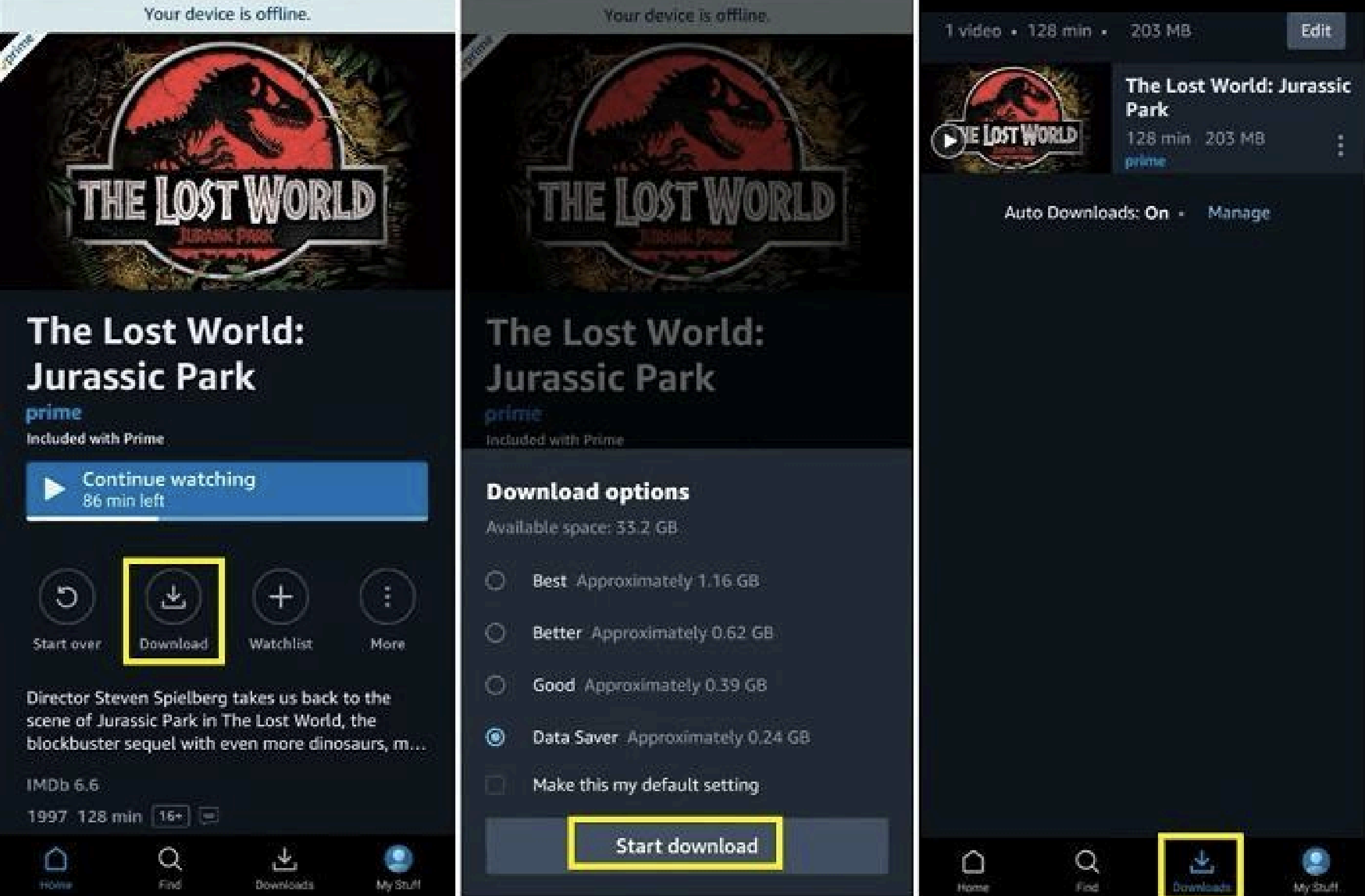
- Kick off the Amazon Prime Video app and then log in with your account.
- Open the detail page of the target video you have already purchased or rented and want to download.
- Click the “Download” icon on the video detail page.
- On the follow-up “Download option” window, choose the download video quality.
- Then click the “Start Download” button to start downloading the desired movie from the Amazon Prime Video app.
- Once the download completes, you can view all downloaded titles from the “Downloads” tab.
By following the above steps, you could easily download movies and TV shows from the Amazon Prime Video app for offline viewing. Just keep in mind that there are quite a few limitations of the Amazon Prime Video download feature, as mentioned above.
Part 3: Download Any Amazon Movies with CleverGet Amazon Downloader
If you want to download movies from Amazon Prime to watch Amazon Prime movies offline without any limit, you need to turn to 3rd-party Amazon Prime video downloader tools. CleverGet Amazon Downloader is a professional Amazon Prime video downloader program that can batch download movies and TV shows from Amazon Prime for unlimited offline viewing. As a professional Amazon Prime video downloader, it could bypass the DRM protection from Amazon Prime movies and TV shows, and save Amazon Prime videos to MP4 files at HD quality. It even allows you to freely select subtitles and audio tracks for a friendlier offline viewing experience. The guide below will show you how to download any Amazon Prime movie with CleverGet Amazon Downloader in detail.
Step 1: Set the download folder
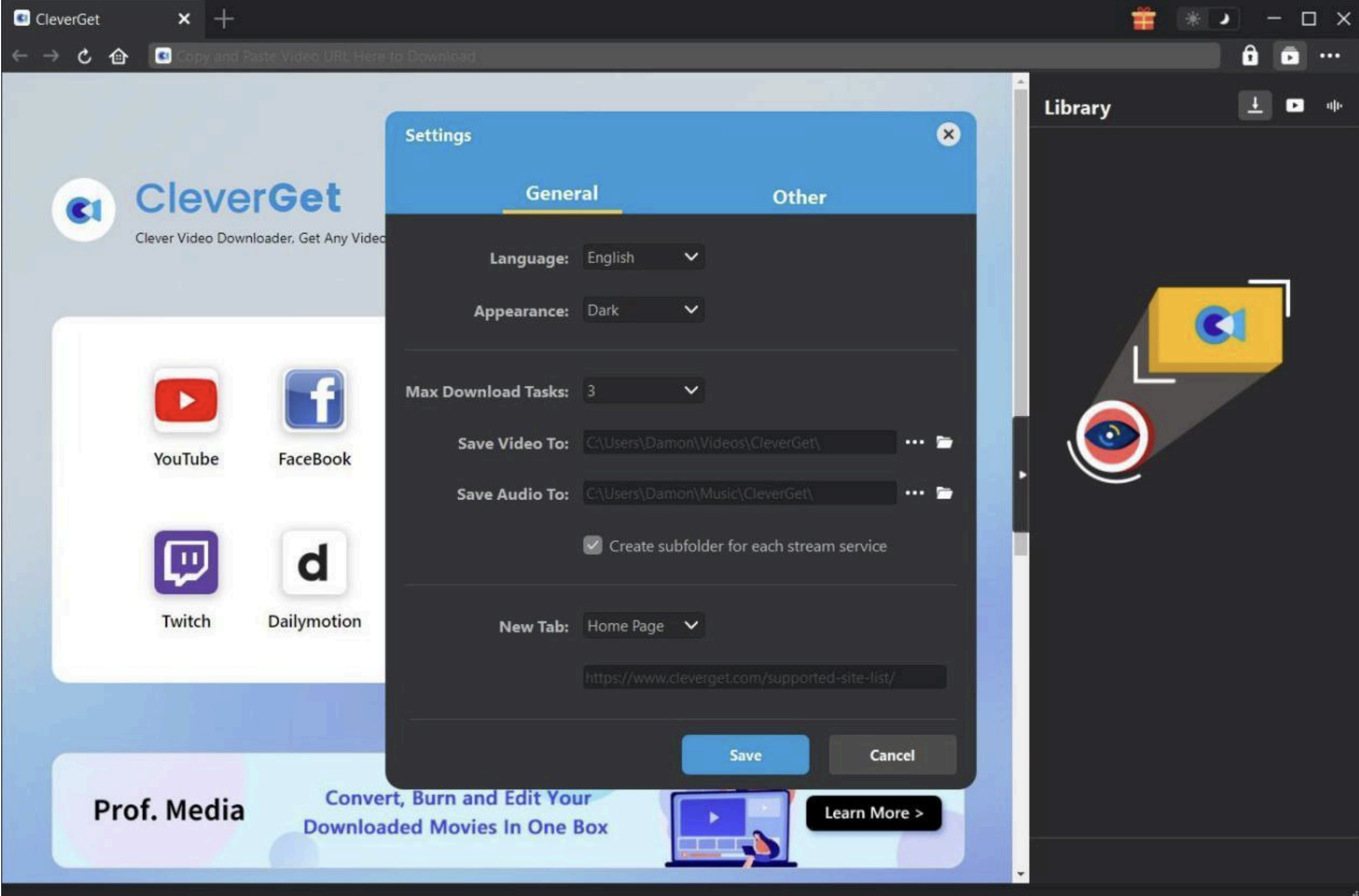
Download, install, and kick off CleverGet on your PC or Mac. Click the 3-dot icon at the top-right corner and then choose the “Settings” option to set the download directory under the “General > Save Video To” box.
Step 2: Play back the target Amazon Prime video
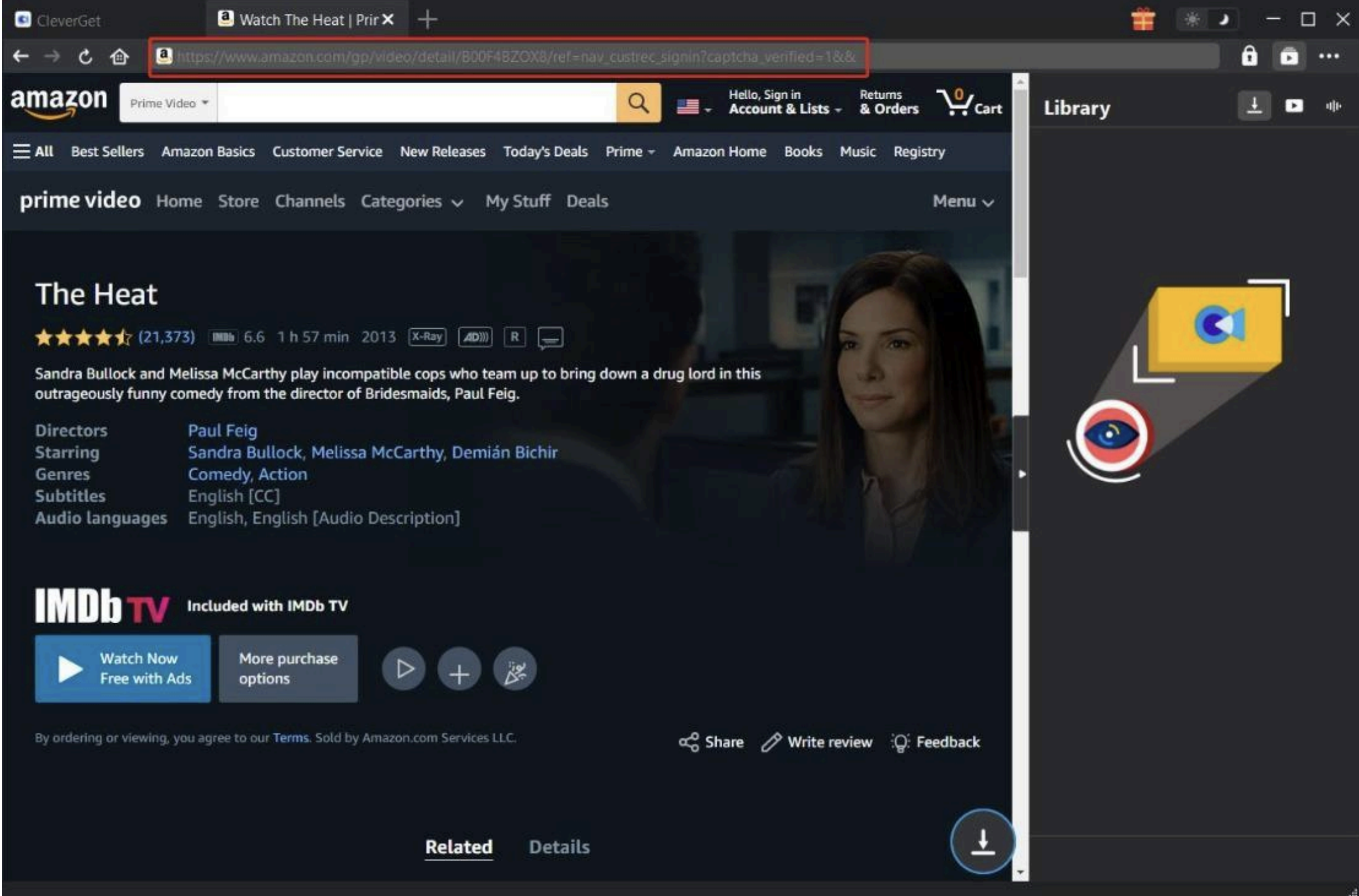
Open the Amazon website within CleverGet, and log in with your account. Open the detail page of the target video you want to download, and then play the target movie back. After that, click the round icon to start parsing the target Amazon Prime movie page.
Step 3: Choose download options
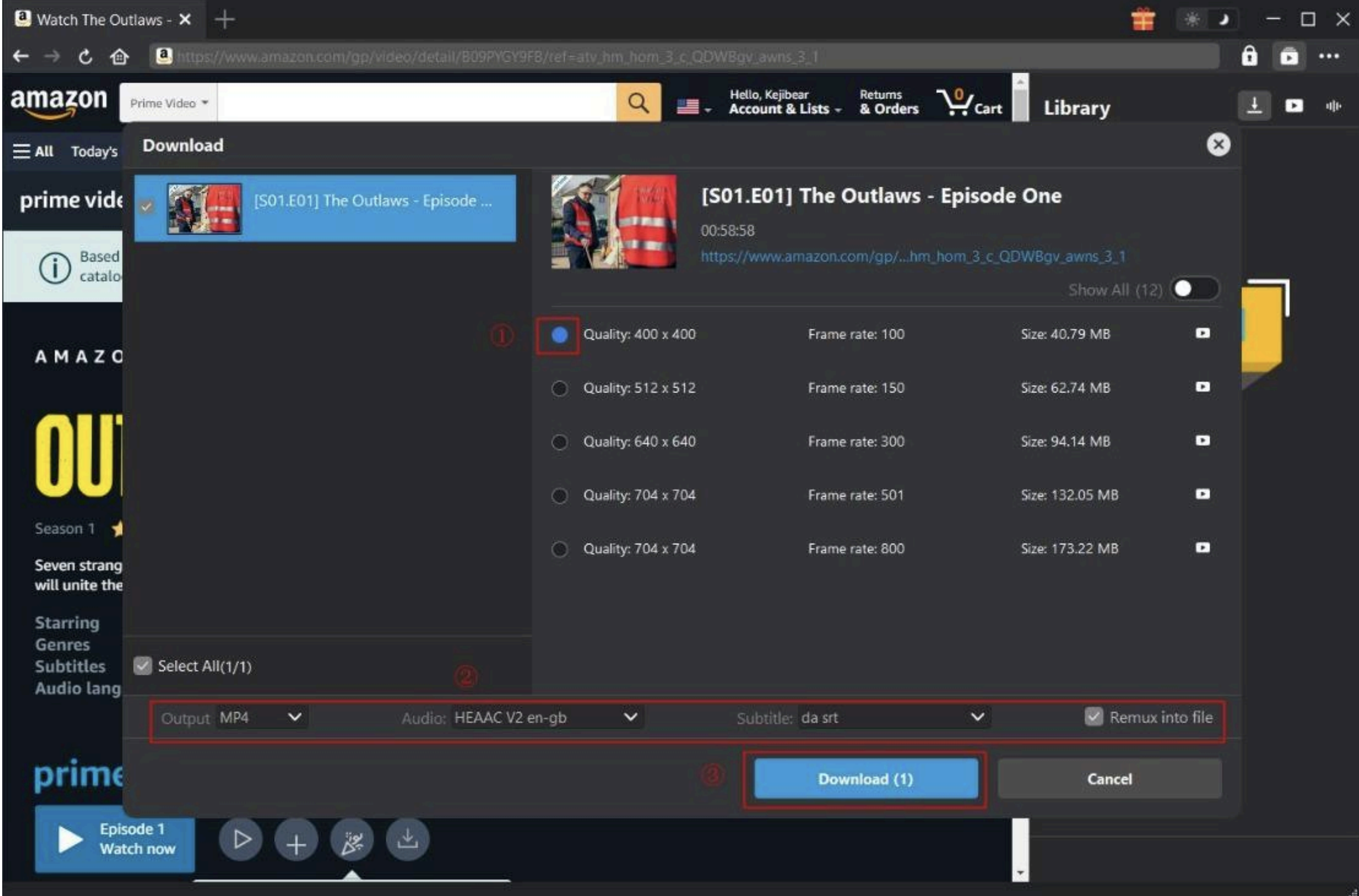
Once CleverGet completes parsing the target video, it will display all detected download options. You then need to choose the download option, set output format, select audio tracks and subtitles, and check the “Remux into file” option if you want to pack subtitles into the output file.
Step 4: Start downloading Amazon Prime videos
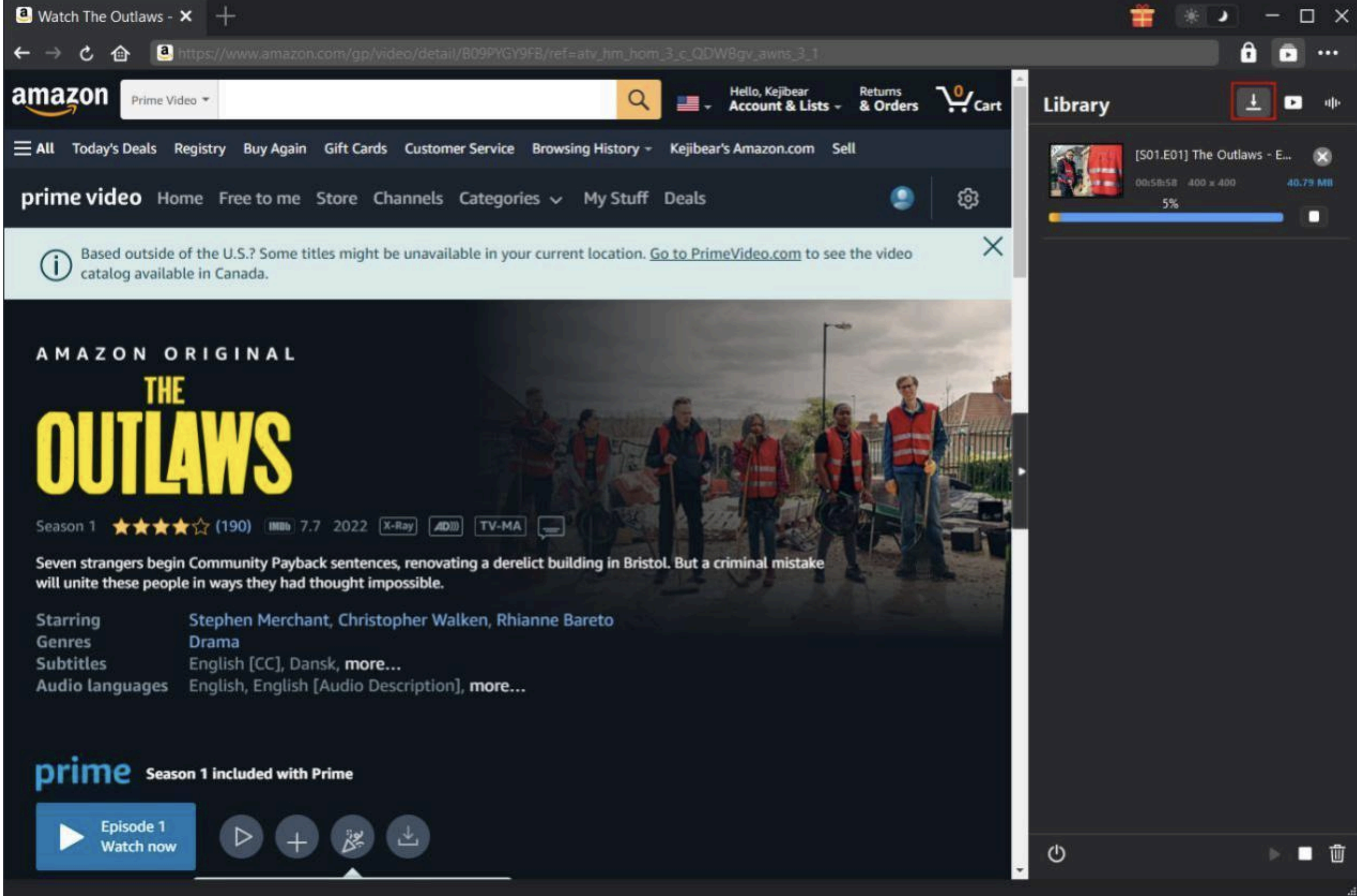
After choosing what to download, click the “Download” button to start downloading Amazon Prime movies. You could then view the entire downloading process on the right sidebar. Wait for the download to complete. Once the download completes, you can then freely play back downloaded Amazon Prime videos on any media player at will without any limit.
Conclusion
Here in this guide, we have listed detailed steps on how to download a movie on the Amazon Prime Video app and its limitations. To avoid or bypass all these limitations of the video download feature within the Amazon Prime Video app, you need to make use of a 3rd-party Amazon video downloader program – CleverGet Amazon Downloader. This Amazon downloader software could remove ads from Amazon Prime, download Amazon Prime movies and TV shows to MP4 at HD quality in batch, and allow you to watch Amazon Prime video downloads on any MP4/MKV compatible media players and devices offline.