


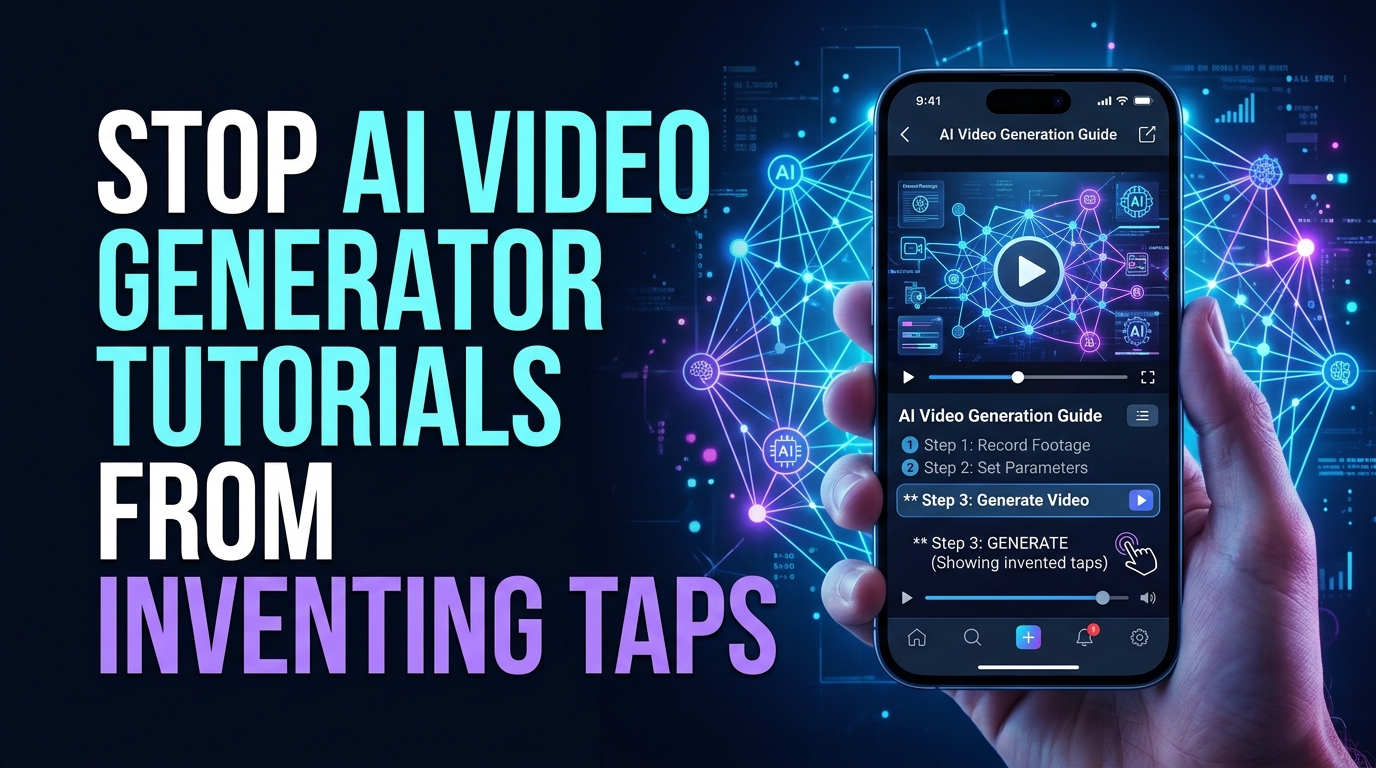
A phone tutorial can fail in the space between two correct screenshots. The first image shows a settings page and the next shows success, so animation supplies a confident tap, swipe, or permission prompt that never existed. Viewers follow the invented gesture and land somewhere else.
An AI Video Generator should not infer the missing interaction. MakeShot can provide motion around a tutorial or between clearly separated cards, but every input and resulting interface state needs source evidence.
An input-state chain pairs one observable user action with one captured result. It exposes gaps before a smooth transition turns them into instructions.
Find Every Gap Where a Tap Gets Invented
List the tutorial goal, app version, operating system, device class, locale, account tier, permissions, and test date. Then place the supplied screenshots in time order. Do not assume their filenames or visual similarity prove that one led to the next.
Record the Input Between Each Captured State
For every pair, write the exact tap, long press, swipe, text entry, menu choice, system confirmation, or wait that occurred. Capture the touch target and the immediate response. If the contributor cannot reproduce the action, mark the gap unsupported.
Include operating-system prompts, keyboard changes, browser handoffs, biometric checks, and permission screens. These are often omitted from polished screenshots even though they determine whether a reader can complete the task.
Separate Optional Paths from Required Steps
Label prerequisites and branches. An already signed-in account, saved payment method, granted permission, or enabled developer option can remove several screens. The tutorial should state those conditions instead of presenting the short path as universal.
Record the failure path when it changes the remedy. A greyed-out button, missing menu, network error, or unsupported device may need a short note. Do not use generation to replace the error with a clean success state.
Replay the supplied sequence once before editing and record the screen. This first pass catches screenshots taken from different devices, locales, or builds. It also reveals hidden scrolling, a keyboard dismissal, or a delayed prompt that the still sequence does not show.
Build the Input-State Chain from Source Captures
Create one row for every action. The row contains the starting screenshot, highlighted input target, action description, resulting screenshot, version, and reviewer. Store raw captures at original dimensions and sanitise personal data before they enter the editing project.
|
Chain element |
Required proof |
Reject when |
|
Starting state |
Versioned source screenshot |
Screen belongs to another build |
|
Input |
Exact target and gesture |
Pointer guesses a control |
|
Response |
Captured prompt, loading, or error |
Intermediate state is skipped |
|
Result |
Observed next screen |
Success was reconstructed |
Use Callouts Instead of Generated Interface Pixels
Add touch rings, cursor paths, arrows, zooms, and labels in a controlled editor. Keep them on separate layers so a reviewer can move a callout without altering the source screen. A generated pointer may drift to the wrong control or create a button that looks real.
Keep text large enough for the smallest delivery format and verify every label against the captured locale. If the app uses different wording on another platform, split the tutorial rather than combining two interfaces in one synthetic screen.
Mark Unsupported Gaps Before Animation Starts
Use pass, recapture, explain, or remove. Recapture means the real input or response is missing. Explain covers a condition that cannot be shown safely but can be stated accurately. Remove means the step is unnecessary or cannot be supported.
A visible gap is safer than an invented action. Pause on the last supported state, explain what the user should expect, and continue only when the next captured state is connected by a verified input.
Number the chain internally and keep the same row ID on screenshots, callouts, narration, and captions. If a reviewer changes one gesture, the editor can find every dependent asset without searching by filename or visual memory.
Animate Outside the Verified Phone Screen
Reserve generated motion for the tutorial's outer frame: a neutral opener, a transition between source cards, or background movement around a fixed phone capture. The interface itself remains a source asset.
Choose One Neutral Background Motion Job
MakeShot supports text and image inputs across current video routes. Inspect the live controls, then choose a simple task that cannot change the instruction. For example: “Move a soft colour band behind the fixed phone frame. Keep the phone rectangle, camera, borders, empty caption zone, and background layout unchanged. Add no interface, text, icons, cursors, hands, devices, notifications, or badges.”
Generate one candidate and save the input, selected route, settings, and output identifier. Reject any motion that enters the screen area, looks like a system notification, or creates a second device that could confuse the step.
Review the candidate at the same speed as the tutorial. A pulse, flash, or moving shape near the phone can look like a tap cue even when it sits outside the captured screen. Remove anything that competes with the verified callout.
Recombine Motion with the Source Chain
Place the verified screenshots and callouts above the approved background. The second AI Video Generator check is whether the tutorial remains complete when the generated layer is hidden. If hiding it removes an input or result, the wrong layer carries evidence.
Keep transitions short and do not accelerate a real wait into a performance claim. When time is condensed, say so in the production record and avoid showing a stopwatch or “instant” result unless that timing was measured and relevant.
Align each callout to the source pixel grid after the final resize. A touch ring that was correct on the master can drift several pixels on a cropped vertical export and point to a neighbouring control. Verify coordinates in every delivered ratio.
Replay the Chain on a Fresh Device
Give the final cut to a reviewer with a reset test account and the documented device conditions. Ask them to perform each input in order. Mark where the video leads to a different state, hides a prerequisite, or moves too quickly to read the control.
Test sound-off, captions, vertical crop, and article width. The touch target and result must remain visible together where the step depends on their relationship. Use pass, repair, recapture, or reject.
Run one replay with accessibility settings that change layout, such as larger text or display zoom, when the tutorial claims broad device support. If controls move or labels wrap, state the tested configuration and avoid implying that one screenshot covers every setting.
The release pack should include raw captures, version matrix, input-state chain, callout layers, exact MakeShot record, captions, export variants, replay notes, and owner. When the app updates, replace affected chain rows and retire every cut built from them.
Store a contact sheet of all starting, response, and result states beside the video. It gives a future editor a quick way to spot which screen changed without replaying the entire tutorial or trusting an old project timeline.
A tutorial earns trust one input at a time. Generated motion may make the sequence easier to watch, but only reproduced taps and captured results should tell a reader what the phone will do.